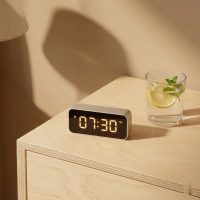
Ever felt like your home needs an extra layer of smartness, especially when it comes to managing lights and appliances? That’s where a Brinks digital timer steps in, transforming ordinary electrical outlets into intelligent control points. As a seasoned expert in digital timers and a content creator for Kenws.com, I’ve seen firsthand how these clever devices can simplify your life, enhance security, and even trim down those pesky energy bills. Let’s dive deep into everything you need to know about the Brinks digital timer, ensuring you can choose, use, and troubleshoot yours like a pro.
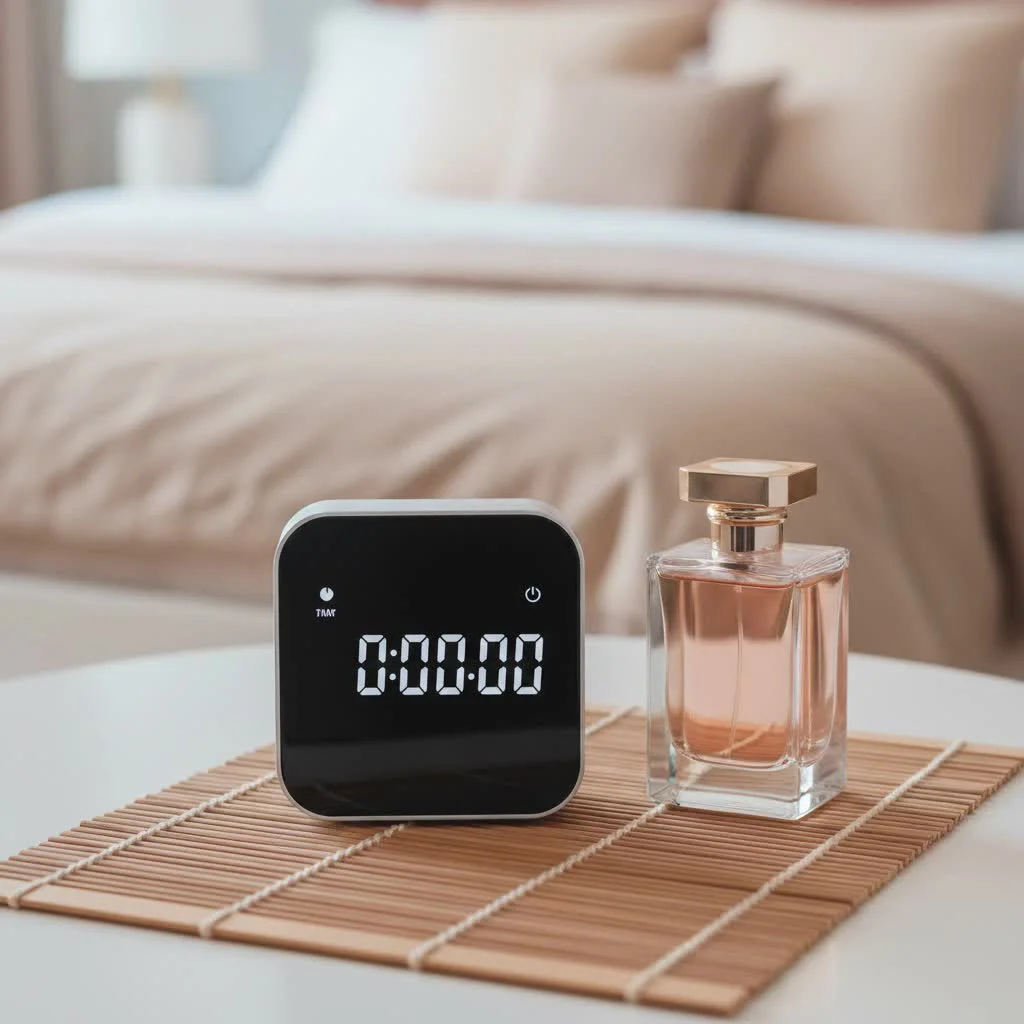
What is a Brinks Digital Timer?
At its core, a Brinks digital timer is a programmable electronic device designed to automate the control of electrical devices by turning them on and off at specific, pre-set times. Forget fiddling with switches; these timers act as your silent electrical assistant, managing everything from your living room lamp to your outdoor floodlights. They come in various forms, including convenient plug-in models and more permanent in-wall units, offering flexibility for different needs around your home.
Brinks, a name synonymous with security, extends its reliability to these timers. While you might associate them primarily with security systems, Brinks digital timers are versatile tools that offer both peace of mind and practical convenience.
Why Embrace a Brinks Digital Timer? Key Features and Benefits
The appeal of a Brinks digital timer goes beyond mere automation. Here’s what makes them a smart choice for any homeowner:
Enhanced Home Security
This is where Brinks truly shines. Digital timers can simulate occupancy by turning lights on and off at varying intervals, making your home appear lived-in even when you’re away. This “random mode” feature is a powerful deterrent against potential intruders. Imagine being on vacation, yet your porch light flicks on at dusk, your living room lamp illuminates for a few hours, and then a bedroom light comes on briefly before midnight – all thanks to your Brinks digital timer.
Energy Efficiency and Cost Savings
Leaving lights or appliances on unnecessarily wastes energy and money. With a Brinks digital timer, you can program devices to operate only when needed. For instance, set your outdoor holiday lights to turn off a few hours after bedtime, or your coffee maker to switch on just before you wake up. This precise control helps reduce your electricity consumption.
Unmatched Convenience
Who doesn’t love a little more convenience? Whether it’s ensuring your electric blanket is warm before you get into bed or having a fan turn on to cool a room at a specific time, Brinks digital timers handle these tasks effortlessly. They bring a level of set-it-and-forget-it automation that modern life demands.
Versatile Programming Options
|
Our Picks for the Best Digital Timer in 2026
As an Amazon Associate I earn from qualifying purchases.
|
||
| Num | Product | Action |
|---|---|---|
| 1 | Allbean Magnetic Kitchen Timer for Cooking with Loud Alarm - Large LED Display Rotating Countdown Pomodoro Timer, Preset 5/15/25 Mins Easy for Seniors and Kids,for Baking Grilling Studying |

|
| 2 | 2 Pack Digital Kitchen Timer for Cooking Big Digits Loud Alarm Magnetic Backing Stand Cooking Timers for Baking White |
|
| 3 | 6 Pack Multi-Function Electronic Timer, Learning Management, Suitable for Kitchen, Study, Work, Exercise Training, Outdoor Activities(not Including Battery) |
|
| 4 | Elegant Digital Kitchen Timer, Stainless Steel Model eT-23, Super Strong Magnetic Back, Loud Alarm, Large Display, Auto Memory, Auto Shut-Off by eTradewinds |
|
| 5 | Visual Kitchen Timer for Cooking,Chef Cooking Timers Clock with Loud Alarm,Timers for Classroom, Home and Study,Mechanical Desk Timer,No Batteries Required,Magnetic Back (Red) |
|
| 6 | VOCOO Digital Kitchen Timer with 7.8” Extra Large Display, Magnetic LED, with 3 Brightness, 4 Alarms and 3 Volume Levels, Battery Powered Countdown Count Up Timer for Cooking, Classroom, Home Gym |
|
| 7 | Easy to USE, Digital Kitchen Timer, Magnetic Timer,Tanmalan(Black,1 Pack) |
|
| 8 | VOCOO Digital Kitchen Timer - Magnetic Countdown Countup Timer with Large LED Display Volume Adjustable, Easy for Cooking and for Seniors and Kids to Use (Space Grey) |
|
| 9 | Azosowo 2 Pack Digital Timer for Kids, Magnetic Kitchen Timers for Cooking, Egg, Teachers, Classroom, Study, Exercise, Oven Baking - AAA Battery Included |
|
| 10 | GuDoQi Digital Hourglass Pomodoro Timer, Magnetic 1-99 Mins Adjustable Rechargeable Digital Countdown ADHD Timer, Mute/Low Volume/High Low Volume Modes for Work, Study, Back to School, Kitch, Black |
|
Most Brinks digital timers offer multiple programmable settings, allowing you to schedule several on/off cycles throughout the day or week. This means you can have different schedules for weekdays, weekends, or even specific days. Many models also include a “countdown” feature for short-term tasks or a “daylight saving time” adjustment for easy seasonal changes.
User-Friendly Design
While programming might seem daunting at first, Brinks timers are designed with an easy-to-read LCD display and intuitive buttons (like “OK,” “Menu,” “Prog,” “+/Manual,” “-“) that make setting them up straightforward once you understand the basic logic.
“A Brinks digital timer isn’t just a gadget; it’s an investment in a smarter, more secure, and energy-conscious lifestyle. The flexibility in programming, especially the random mode, is a game-changer for home security,” observes Dr. Eleanor Vance, a leading expert in smart home security systems.
Types and Applications of Brinks Digital Timers
While Brinks primarily focuses on reliable, practical timers for general household use and security, understanding the common types helps match the right timer to your specific application:
- Plug-in Digital Timers: These are the most common and easiest to use. You simply plug them into a standard outlet, and then plug your appliance or light into the timer. They are ideal for lamps, fans, small heaters, and holiday decorations. Many outdoor versions come with weatherproof housing and photocell sensors for dusk-to-dawn operation.
- In-Wall Digital Timers: These replace a standard wall switch, offering a more integrated and permanent solution for controlling hardwired lighting fixtures, ceiling fans, or outdoor landscape lighting. While they require a bit more installation, they provide a clean look.
- 7-Day Programmable Timers: Many Brinks models allow for individual daily programming, meaning you can set different schedules for each day of the week, perfect for homes with varying weekly routines.
- Photocell Timers: Often found in outdoor Brinks digital timer models, these timers detect ambient light levels, automatically turning connected devices on at dusk and off at dawn, or after a set number of hours.
Common Applications:
- Home Security Lighting: The classic use case, leveraging random mode to deter burglars.
- Holiday Decorations: Automate your festive lights, ensuring they come on and go off at set times, saving energy.
- Grow Lights: For indoor gardening, precise on/off cycles are crucial.
- Aquarium Lights: Maintain a consistent lighting schedule for your aquatic pets.
- Coffee Makers: Wake up to the aroma of freshly brewed coffee.
- Fans & Heaters: Regulate room temperature efficiently.
- Phone Chargers: Prevent overcharging by limiting power delivery to specific times.
How to Choose the Right Brinks Digital Timer for Your Needs
Selecting the perfect Brinks digital timer involves a few considerations:
- Indoor vs. Outdoor: Ensure your timer is rated for its intended environment. Outdoor timers must be weatherproof.
- Number of Programs: Do you need just one on/off cycle, or multiple throughout the day/week? Most Brinks timers offer several program slots (e.g., up to 16 programs per day on models like 44-1031).
- Specific Features:
- Random Mode: Essential for security.
- Manual Override: Allows you to temporarily turn devices on/off without erasing programs.
- Battery Backup: Crucial for retaining settings during power outages.
- Daylight Saving Time Adjustment: A convenient feature for easy seasonal time changes.
- Photocell Sensor: Ideal for outdoor lighting that responds to natural light.
- Outlet Type/Quantity: Do you need a single outlet or multiple grounded outlets? Some outdoor models provide two.
- Amperage/Wattage Rating: Always check the timer’s maximum load capacity to ensure it can safely handle the devices you intend to plug into it. Overloading can be a fire hazard.
Step-by-Step Guide: Programming Your Brinks Digital Timer
While specific button labels may vary slightly by model (e.g., 44-1011, 44-1031, 44-1030), the core programming logic for a Brinks digital timer remains consistent. Always refer to your specific model’s manual for precise instructions. Here’s a general guide:
Step 1: Initial Setup and Reset
- Plug in the Timer: Insert your Brinks digital timer into an electrical outlet. If it has a battery backup, it might need to charge for a few minutes before displaying numbers.
- Reset: Use a pointed object (like a pen or paper clip) to press the “Reset” button. This clears all previous settings and initializes the timer, often displaying “12:00 AM Sunday” or a default time.
Step 2: Setting the Current Time
- Enter Time Setting Mode: Press and hold the “OK” or “CLOCK” or “TIME” button for about 4 seconds until the “Day” display flashes.
- Set Day: Use the “+/Manual” and “-” buttons to select the current day of the week. Press “OK” to confirm.
- Set Hour: The “Hour” display will flash. Use the “+/Manual” and “-” buttons to select the current hour, ensuring you select the correct AM/PM. Press “OK” to confirm.
- Set Minute: The “Minute” display will flash. Use the “+/Manual” and “-” buttons to select the current minute. Press “OK” to confirm.
- Exit Time Setting: Press the “MENU” or “CLOCK” button to exit and save the current time. Your timer is now in clock mode, and the colon symbol between hours and minutes might be flashing.
Step 3: Programming On/Off Times
Brinks timers typically allow multiple on/off programs (e.g., “PROG 1 ON,” “PROG 1 OFF,” “PROG 2 ON,” etc.).
- Enter Program Mode: Press the “MENU” or “PROG” button. You’ll likely see “PROG 1 ON” flash.
- Select Program: Press “OK” (or “MENU” again, depending on the model) to select “PROG 1 ON.”
- Set Program Days: The “Day” display will flash. Use the “+/Manual” and “-” buttons to cycle through options: individual days (MO, TU, WE, etc.), weekdays (MO-FR), weekends (SA-SU), or all days (MO-SU). Press “OK” to confirm.
- Set Program ON Time (Hour): The “Hour” display will flash. Use the “+/Manual” and “-” buttons to select the desired hour for the device to turn ON. Ensure AM/PM is correct. Press “OK” to confirm.
- Set Program ON Time (Minute): The “Minute” display will flash. Use the “+/Manual” and “-” buttons to select the desired minute. Press “OK” to confirm.
- Set Program OFF Time: “PROG 1 OFF” will now flash. Repeat steps 3-5 to set the desired OFF time for this program.
- Repeat for Additional Programs: If you need more on/off cycles, continue pressing the “PROG” or “MENU” button to cycle to “PROG 2 ON,” “PROG 2 OFF,” and so on, repeating the steps.
- Exit Program Mode: Once all programs are set, press the “MENU” button (sometimes twice) to return to clock mode.
- Set to AUTO Mode: For your programs to function, ensure the timer is set to “AUTO ON” or “AUTO OFF” mode using the “Manual” or “+/Manual” button. This enables the programmed schedule.
Step 4: Activating Special Features (if applicable)
- Random Mode (RND): In clock mode, press the “-” button (on some models) to enter random mode. “RND” will appear on the display, delaying your set programs by a random interval (e.g., 4 to 32 minutes) for enhanced security. Press “-” again to exit.
- Daylight Saving Time (DLST): In clock mode, press the “Recall” button (on some models) to adjust the time forward or backward by one hour.
Troubleshooting Common Brinks Digital Timer Issues
Even the most reliable devices can sometimes encounter hiccups. Here are some common issues and how to resolve them:
- Timer Not Turning On/Off at Programmed Times:
- Check Power: Ensure the timer is firmly plugged into a working outlet and the device plugged into the timer is also receiving power (and its own switch is in the “ON” position).
- Verify Programming: Double-check your ON/OFF times, days, and AM/PM settings. A small mistake can throw off the entire schedule.
- “AUTO” Mode: Make sure the timer is set to “AUTO ON” or “AUTO OFF” for programmed functions to engage. If it’s in “ON” or “OFF” manual mode, it will override programs.
- Battery Backup: If the timer lost power and doesn’t have a backup, it may have lost its settings. Reset and reprogram.
- Display is Blank or Faint:
- Power Supply: Ensure the timer is plugged in. If it has a rechargeable battery, it might need to charge for a bit.
- Battery (if replaceable): Some older models might use replaceable batteries that need to be changed.
- Random Mode Not Working:
- Activation: Ensure “RND” is displayed, indicating random mode is active.
- Model Support: Not all Brinks digital timers have a random mode. Check your manual.
- Buttons Unresponsive:
- Reset: A full reset (using a paperclip on the reset button) often resolves minor software glitches.
- Moisture/Damage: For outdoor timers, check for any moisture ingress or physical damage.
If you continue to experience issues, remember Brinks often provides customer support. The contact number 1-800-562-5625 has been cited for assistance with some models.
Frequently Asked Questions About Brinks Digital Timers
Q: Can a Brinks digital timer be used with any appliance?
A: Brinks digital timers can be used with most electrical appliances, but it’s crucial to check the timer’s maximum wattage and amperage ratings. Do not exceed these limits, especially with high-power appliances like large heaters or motors.
Q: Do Brinks digital timers have a battery backup?
A: Many Brinks digital timers, especially indoor plug-in and 7-day programmable models, include a battery backup feature to retain your programmed settings during a power outage. Always check the product specifications for confirmation.
Q: How do I enable random mode on my Brinks digital timer for security?
A: On many Brinks digital timers, you can enter random mode by pressing the “-” (minus) button while in clock mode. You should see “RND” appear on the display, indicating that your programs will now be activated with a slight, unpredictable delay.
Q: What does “AUTO ON” or “AUTO OFF” mean on my timer?
A: “AUTO ON” means the device is currently ON and will follow its programmed schedule to turn OFF. “AUTO OFF” means the device is currently OFF and will follow its programmed schedule to turn ON. These modes ensure your timer is actively managing your programmed events.
Q: How do I clear all settings on my Brinks digital timer?
A: To clear all programmed settings and reset the timer to its default state, locate the small “Reset” button (usually recessed) and press it for a few seconds using a thin object like a paper clip. This will erase all programs and current time settings.
Q: Can I use an outdoor Brinks digital timer in the rain?
A: Yes, Brinks outdoor digital timers are specifically designed to be weatherproof and can be safely used in rain and other outdoor conditions. They often come with features like an Invisa-Shield cover and durable construction to protect internal components.
Conclusion: Embrace the Power of the Brinks Digital Timer
From enhancing home security to saving energy and offering unparalleled convenience, the Brinks digital timer is a simple yet powerful tool for any modern household. By understanding its features, mastering its programming, and knowing how to troubleshoot common issues, you can unlock its full potential. So, go ahead, plug in a Brinks digital timer, and experience the effortless control it brings to your daily life. Your home, and your wallet, will thank you.
Smart home that does not lock you in
Practical specs, not advice. Unsubscribe anytime.