The Litesun digital timer automates electrical devices, enhancing home automation, energy savings, and security. It features an LCD screen, multiple programming buttons, and models like the LTS-T30 and LTS-T21, which can manage up to 16 ON/OFF programs daily. This guide covers setup, programming, and troubleshooting to maximize its versatility for modern homes and businesses.
Understanding Your Litesun Digital Timer
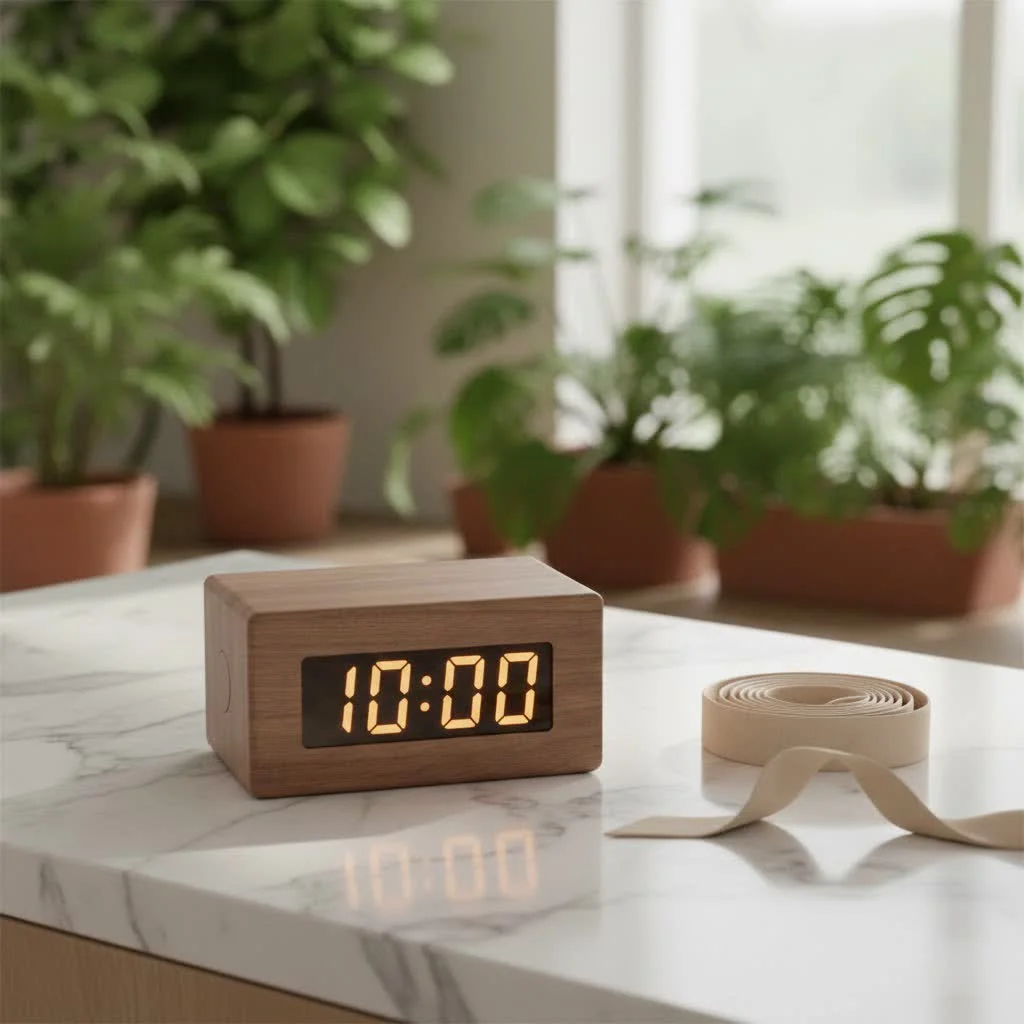
A Litesun digital timer is a sophisticated electronic device designed to automate when your electrical appliances turn on and off. This precision allows for automated lighting, coffee makers, or holiday decorations, making it a valuable tool for modern homes and businesses.
Key Components and Features
Every Litesun digital timer includes an easy-to-read LCD screen displaying current time, scheduled programs, and operational status. Buttons around the display manage time settings, program intervals, and manual overrides. Indicator lights provide visual cues for active programs or errors. Litesun offers models like the LTS-T30 and LTS-T21, with single to multi-channel versions supporting weekly or multiple-cycle schedules, depending on user needs.
Why Choose a Litesun Digital Timer?
Integrating a Litesun digital timer offers extensive benefits, primarily unparalleled convenience by automating device control. It’s also a powerful tool for energy saving, reducing power consumption and lowering electricity bills by operating appliances only when needed. For home security, features like random mode can simulate occupancy, deterring potential intruders when you’re away.
Getting Started: Initial Setup and Installation
Proper setup is crucial for a reliable Litesun digital timer experience. Follow these steps to get your device running safely and efficiently.
Unboxing and First Look
Before plugging in, carefully unbox your Litesun digital timer. Verify all components are present and inspect for damage. Cross-reference the model number and specifications with your intended use for compatibility. If the display is blank, plug it into a power receptacle for 10-20 minutes to give its internal backup battery an initial charge.
Powering On and Setting the Clock
After inspection, connect your timer to a compatible power source. The LCD will show a default time or a prompt to set the current time. Use the designated buttons to configure the hour, minute, and day of the week. Accurate time setting is vital as all future programs depend on it. Most Litesun models support 12-hour and 24-hour formats and Daylight Saving Time adjustments.
“Setting your Litesun digital timer correctly from the start is like laying the perfect foundation for a smart home. Precision in setting the initial time and understanding the basic controls will empower you to unlock its full potential.” — Dr. Elena Petrova, Digital Timing Systems Engineer
Programming Your Litesun Digital Timer: Step-by-Step
Programming your Litesun digital timer allows it to control your devices according to custom schedules, enabling automation.
Setting Basic ON/OFF Programs
|
Our Picks for the Best Digital Timer in 2026
As an Amazon Associate I earn from qualifying purchases.
|
||
| Num | Product | Action |
|---|---|---|
| 1 | Easy to USE, Digital Kitchen Timer, Magnetic Timer,Tanmalan(Black,1 Pack) |

|
| 2 | GuDoQi Digital Hourglass Pomodoro Timer, Magnetic 1-99 Mins Adjustable Rechargeable Digital Countdown ADHD Timer, Mute/Low Volume/High Low Volume Modes for Work, Study, Back to School, Kitch, Black |
|
| 3 | VOCOO Digital Kitchen Timer with 7.8” Extra Large Display, Magnetic LED, with 3 Brightness, 4 Alarms and 3 Volume Levels, Battery Powered Countdown Count Up Timer for Cooking, Classroom, Home Gym |
|
| 4 | 6 Pack Multi-Function Electronic Timer, Learning Management, Suitable for Kitchen, Study, Work, Exercise Training, Outdoor Activities(not Including Battery) |
|
| 5 | Allbean Magnetic Kitchen Timer for Cooking with Loud Alarm - Large LED Display Rotating Countdown Pomodoro Timer, Preset 5/15/25 Mins Easy for Seniors and Kids,for Baking Grilling Studying |
|
| 6 | Azosowo 2 Pack Digital Timer for Kids, Magnetic Kitchen Timers for Cooking, Egg, Teachers, Classroom, Study, Exercise, Oven Baking - AAA Battery Included |
|
| 7 | Visual Kitchen Timer for Cooking,Chef Cooking Timers Clock with Loud Alarm,Timers for Classroom, Home and Study,Mechanical Desk Timer,No Batteries Required,Magnetic Back (Red) |
|
| 8 | VOCOO Digital Kitchen Timer - Magnetic Countdown Countup Timer with Large LED Display Volume Adjustable, Easy for Cooking and for Seniors and Kids to Use (Space Grey) |
|
| 9 | 2 Pack Digital Kitchen Timer for Cooking Big Digits Loud Alarm Magnetic Backing Stand Cooking Timers for Baking White |
|
| 10 | Elegant Digital Kitchen Timer, Stainless Steel Model eT-23, Super Strong Magnetic Back, Loud Alarm, Large Display, Auto Memory, Auto Shut-Off by eTradewinds |
|
The core function of your timer is to turn devices on and off at specific times.
- Enter Programming Mode: Press the ‘PROG’ or ‘PROGRAM’ button to access the programming interface. A ‘1 ON’ prompt will appear for the first “on” event.
- Select Days: Use the ‘WEEK’ or similar button to choose the day(s) for this event, such as individual days, weekdays (Mon-Fri), weekends (Sat-Sun), or all seven days.
- Set ON Time: Use the ‘HOUR’ and ‘MIN’ buttons to set the exact time you want your device to turn on.
- Set OFF Time: Press ‘PROG’ again to see ‘1 OFF’. Repeat day selection (if needed) and set the exact time for the device to turn off.
- Repeat for More Programs: Litesun digital timers typically allow 10 to 16 ON/OFF programs. Continue pressing ‘PROG’ to cycle through ‘2 ON’, ‘2 OFF’, and so on, until all desired events are set.
- Exit Programming: Press ‘CLOCK’ or ‘TIME NOW’ to exit and return to the current time display. Ensure your timer is in ‘AUTO’ mode for programs to run.
Advanced Scheduling Options
Many Litesun models offer enhanced scheduling flexibility, including:
- Weekly Programming: Customize schedules for weekdays, weekends, or specific days like a Tuesday-Thursday pattern for plant watering.
- Multiple Cycles: Some devices can manage several on/off cycles daily, ideal for grow lights requiring specific light/dark periods.
Utilizing the Countdown Function
Your Litesun digital timer often includes a countdown feature, allowing you to set a duration (e.g., 1 hour, 30 minutes) after which the connected device automatically turns off. This is useful for temporary tasks like charging a phone or running a fan. To use it, press the ‘COUNTDOWN’ or ‘CD’ button, set the duration, and activate.
Activating Random Mode for Enhanced Security
For enhanced home security when away, activate the “Random” mode, typically by pressing a ‘RANDOM’ button. This feature causes your Litesun digital timer to turn connected lights or appliances on and off at irregular intervals within a specified timeframe (e.g., 6 PM to 6 AM). This simulates occupancy, deterring potential intruders. Ensure the timer is in ‘AUTO’ mode for this function to work.
Practical Applications of the Litesun Digital Timer
The Litesun digital timer is highly versatile, applicable in numerous ways throughout your home and beyond.
Home Lighting Control
A common application is controlling lighting. Schedule indoor lights for ambiance or outdoor lights for security. Automate Christmas lights, porch lights, or lamps in different rooms to make your home appear occupied, enhancing security.
Appliance Management
Many appliances benefit from automated control:
- Coffee Makers: Wake up to freshly brewed coffee.
- Heaters/Fans: Turn them on before you arrive home or off after you leave, ensuring comfort and energy savings.
- Phone Chargers: Prevent overcharging by setting the timer to turn off after a few hours.
Horticulture and Aquariums
For indoor gardening or aquarium enthusiasts, digital timers are essential. They provide precise control over grow lights, hydroponic pumps, and aquarium filters, ensuring consistent light cycles and nutrient delivery for plants and aquatic life.
Energy Efficiency and Cost Savings
By ensuring devices run only when necessary, your Litesun digital timer significantly reduces your energy footprint. This eliminates accidentally leaving lights on or electronics consuming “phantom” power, directly translating into noticeable savings on utility bills.
Troubleshooting Common Litesun Digital Timer Issues
Even reliable devices can have issues. Here’s how to address common problems with your Litesun digital timer.
Blank Display or No Power
- Initial Charge: If the display is blank, plug the timer into a live outlet for 10-20 minutes to charge its internal backup battery.
- Reset Button: If the display is
Frequently Asked Questions
How many ON/OFF programs can I set on my Litesun digital timer?
Most Litesun digital timers allow users to set between 10 to 16 individual ON/OFF programs per day. This extensive flexibility helps manage multiple devices and varied schedules efficiently.
Can I use my Litesun digital timer for outdoor devices?
Generally, Litesun digital timers are designed for indoor use. Always check your specific model's product specifications; if outdoor use is intended, ensure it is explicitly rated for outdoor conditions or protected by a weatherproof enclosure.
What should I do if my Litesun digital timer's display is blank or unresponsive?
First, ensure the timer is plugged into a live outlet for 10-20 minutes to charge its internal battery. If the display remains blank or shows errors, use a pointed object like a paperclip to press the recessed 'RESET' button, which often resolves display glitches.
How do I activate the random mode on my Litesun digital timer?
To activate random mode, ensure the timer is in 'AUTO' mode, then typically press the 'RANDOM' button. This feature cycles devices on and off at irregular intervals to simulate occupancy for security purposes, usually within a specified timeframe like 6 PM to 6 AM.
Is there a manual override function on the Litesun digital timer?
Yes, Litesun digital timers usually feature a manual override button. This allows you to temporarily switch a device on or off without altering your preset programs. Pressing it again typically returns the timer to its automatic schedule.
Smart home that does not lock you in
Practical specs, not advice. Unsubscribe anytime.
The Litesun timer works pretty well for my aquarium lights, and the LCD screen is clear. My only minor complaint is that the programming buttons are a bit small and sometimes I accidentally press the wrong one. It takes a little patience to get the 16 programs set just right, but once it’s done, it holds the schedule perfectly.
This timer is excellent for enhancing home security. I use it to randomly turn on and off lamps in different rooms when I’m away, making it look like someone’s home. The versatility of being able to manage up to 16 programs is a huge plus. It’s a small investment for a lot of peace of mind and energy savings.
I’ve been using the Litesun LTS-T30 for a few weeks now to control my outdoor patio lights, and it’s been fantastic. The setup was surprisingly straightforward, and I love being able to set multiple ON/OFF programs daily. It’s really made a difference in not having to remember to turn them off every night. Definitely recommend for anyone looking to automate their home.
I got a Litesun digital timer specifically for my coffee maker, and it’s a game-changer for my mornings. Waking up to fresh coffee brewing is the best! I found the troubleshooting section helpful when I first started, but now it’s running smoothly. It’s a solid device for simple home automation tasks.